


Note: The default setting of the Router is configured for a Cable connection using a Dynamic IP Address.
1) Open your web browser and type the IP address of the TW100-BRV204/304 in the address bar. The default IP address is 192.168.0.1. At the login, enter your username (blank) and password (blank).
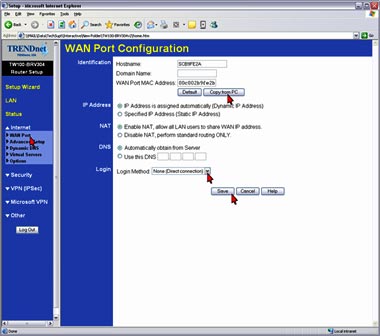
2) Click on Internet then WAN Port on the left hand side.
3) Choose None (Direct Connection) in the Login Method field in the Login Section.
4) If your ISP has registered the MAC Address of your computer that you are managing the Router from click on Copy From PC under the WAN PORT MAC Address field. This will copy your computers MAC Address to the Router. If you are not managing the computer from the computer with the registered MAC Address make sure you enter the registered MAC Address manually.
5) Click Save.
Note: After you save the settings you may need to power cycle the modem and Router.
1) Disconnect the power cycle from the modem and Router.
2) Wait approximately 15 seconds.
3) Reconnect the modem first and wait for it to boot up.
4) After the modem has booted up reconnect the Router.
- How do I configure a VPN tunnel when one side has a dynamic IP address?
- How do I connect using a the Microsoft VPN Client?
- How do I forward ports in my TW100-BRV204/304?
- How do I configure a VPN tunnel with both sides having static IP addresses?
- I specified the IP address, 192.168.0.1 in my internet browser, but the bowser comes back with "The page cannot be displayed". How can I get into the TW100-BRV204 web configuration page?