


1) Open your web browser and type the IP address of the TW100-BRV204/304 in the address bar. The default IP address is 192.168.0.1. At the login, enter your username (blank) and password (blank).
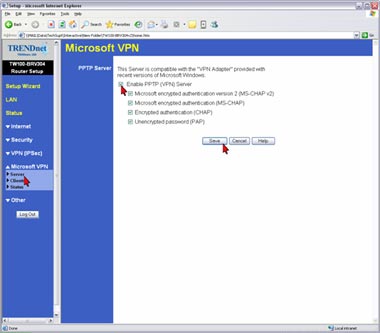
2) Click Microsoft VPN then Server on the left hand side. Place a check mark in Enable PPTP (VPN) Server then click Save.
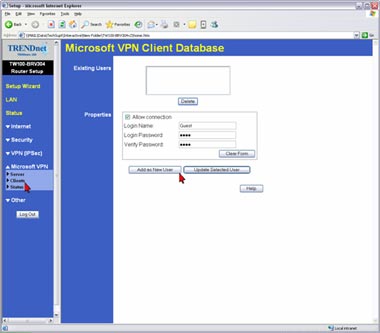
3) Click on Clients on the left hand side. Place a check mark in Allow connection. Add a Login Name and Login Password, verify the password and click Add as a New User.
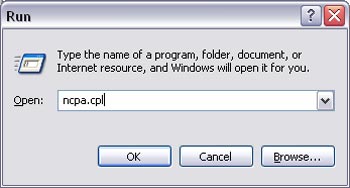
4) From a remote client. Click Start>Run and type in "ncpa.cpl", without the quotes then click OK.
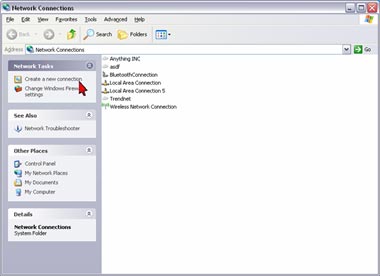
5) Click Create a new connection.
6) Click Next
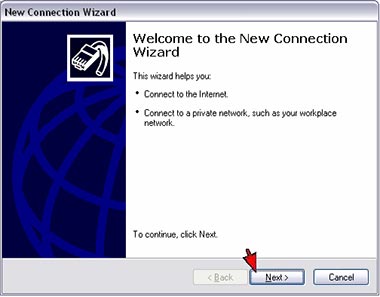
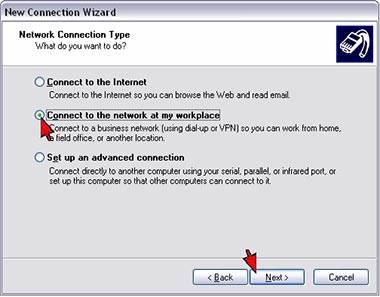
7) Select Connect to the network at my workplace then click Next.
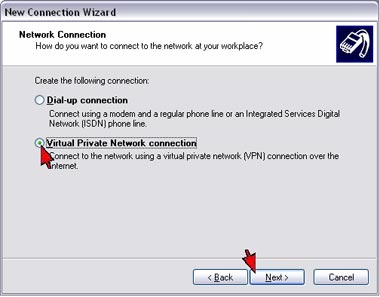
8) Select Virtual Private Network connection then click Next.
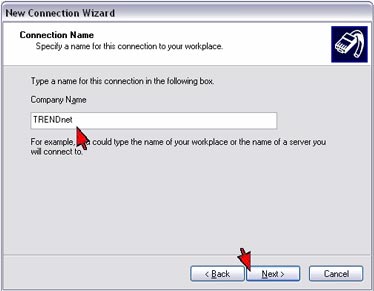
9) Enter in a name for the connection then click Next.
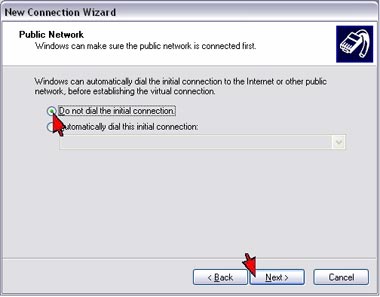
10) Select Do not dial the initial connection then click Next.
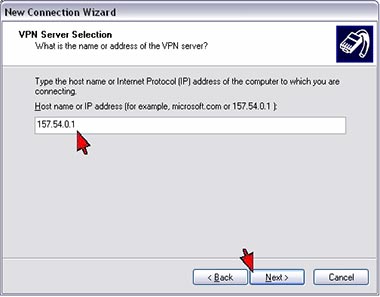
11) Enter the Public IP address of the TW100-BRV204/304 into the Host name or IP address field then click Next. Note: Do not enter in the IP address that is in the screenshot. That is an example only. You will use the Public IP address of the Router that you are connecting to.
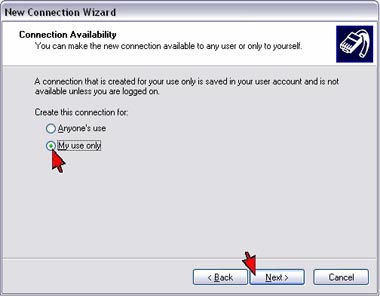
12) Select My use only then click Next.
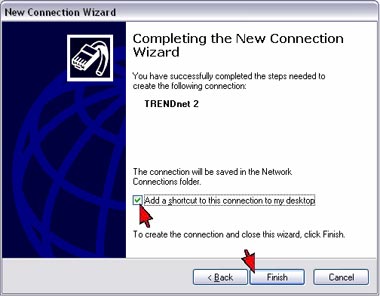
13) Place a check mark into Add a shortcut to this connection to my desktop if you want a shortcut then click Finish.
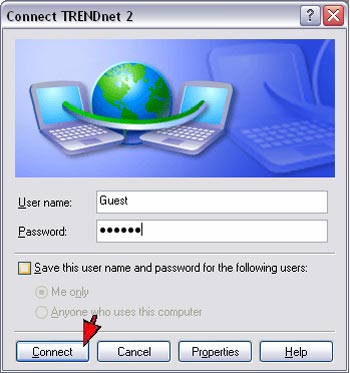
14) Enter the Username and Password that you configured on the TW100-BRV204/304 then click Connect.
- When I attempt to access http://192.168.0.1 with my web browser, an error message tells me "The page cannot be displayed." How can I get into the TW100-BRV304 web configuration page?
- How do I configure a VPN tunnel with both sides having static IP addresses?
- I set up my Internet Connection Type and saved it, but I still cannot access the Internet with my PC. What should I do?
- How do I configure a VPN tunnel when one side has a dynamic IP address?
- How do I forward ports in my TW100-BRV204/304?