Motion Configuration-1
Step 1Start the IPView Pro Program by going to Start>Programs>IPView Pro>IPView Pro.
Step 2 Click on "System Configuration".
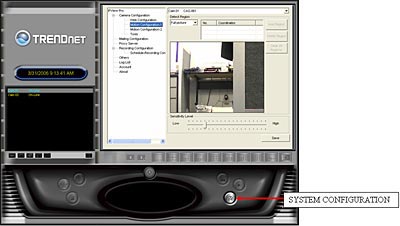
Step 3
Motion Configuration-1
This setting provides the commands for motion detection control. Before configuring,
you should select one camera from the pull-down menu.
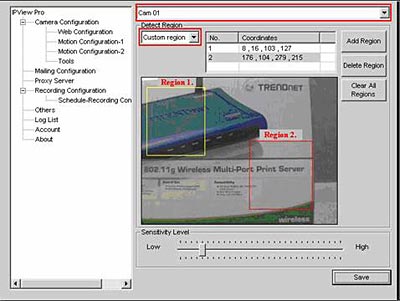
Step 4 Detect Region field:
• Full picture – When you select this option, the camera will monitor the
whole area.
• Custom region – Click Add Region and then use your mouse to draw an area
in the view screen. When motion is detected within the area, the camera
starts recording automatically. You can set multiple areas in the view screen.
Click Delete Region to remove the area selected. Click Clear All Regions
to remove all areas in the view screen.
Step 5 Sensitivity Level: Move the slide bar to adjust the sensitivity level for detecting motion to record video.
Note: The Sensitivity rating determines the amount of motion in the created window(s) to activate motion. Setting it too high or too low may produce unexpected results. .
Step 6 Click "Save".
Motion Configuration-2
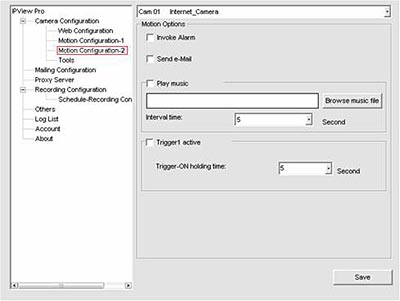
The Motion Configuration-2 setting allows you to configure the alarm and e-mail settings.
- Invoke Alarm: Select this option to enable an alarm when motion is detected by the system. Note: Invoke Alarm requires that you have a trigger installed on the camera.
- How can I view the TV-IP100 (w) remotely if it’s behind a router or firewall?
- How do I reset my TV-IP100 (C1) back to factory defaults?
- What is the default IP address of my TV- IP100 (C1)?
- How do I make the camera wireless?
- How do I configure my TV-IP100 (C1) series cameras to upload snapshots to an FTP server?