


Search FAQs
Browse by Product
How do I view the TV-IP400(w)’s image using IPView SE?
FAQ ID: 681 Product: TV-IP400Updated:12/20/2005 2:56:05 PM
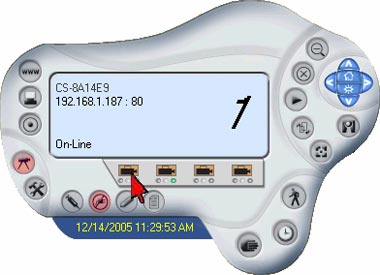
Step 1 Start the IPView SE application by clicking on Start>All Programs>IPView SE>IPView SE.
Step 2 Click on Camera 1.
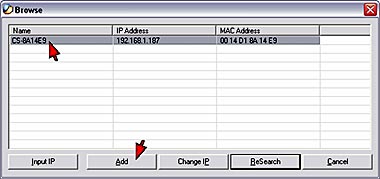
Step 3 The IPView SE application will detect your camera. Highlight the camera by single left clicking on it and then click Add.
Related FAQs:
- How do I reset my TV-IP400(w) back to factory defaults?
- How do I set a password on my TV-IP400(w)?
- How can I view the TV-IP400(w) remotely if it’s behind a router or firewall?
- How can I configure my TV-IP400(w) through the web-based configuration?
- Which web browsers will allow me to view the video from a TV-IP400(w)?
Attachments:
No attachments found.