


Search FAQs
Browse by Product
How do I configure the camera to record motion?
FAQ ID: 676 Product: TV-IP400Updated:12/20/2005 2:45:09 PM
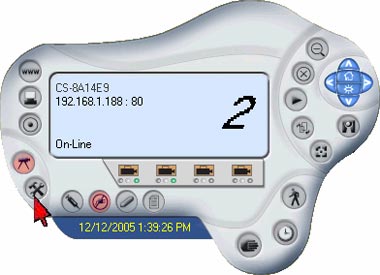
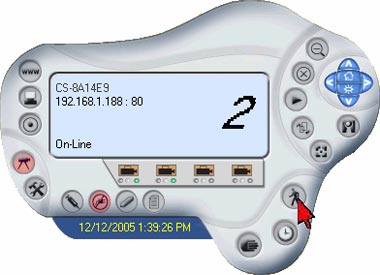
Step 1 Open the IPView SE software.
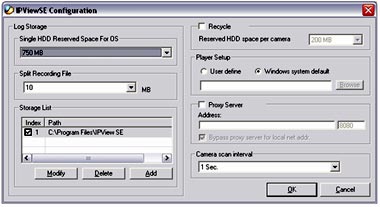
Step 2 Click on the System Configuration button to configure options for recording.
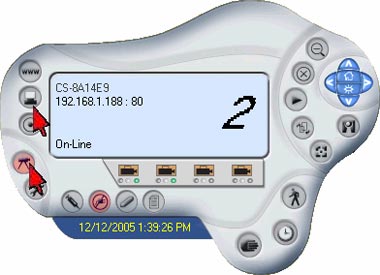
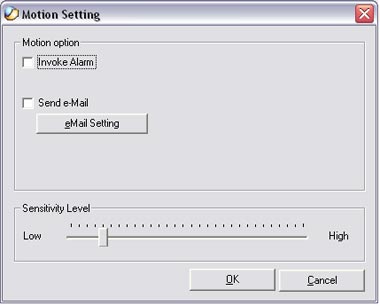
Step 3 Click on the Camera Configure button then click the Motion Settings button for additional settings.
Step 5 Once the unit is set to the desired configuration you can start recording by clicking on the Motion Recording button.
Related FAQs:
- How do I reset my TV-IP400(w) back to factory defaults?
- How do I set a password on my TV-IP400(w)?
- How can I view the TV-IP400(w) remotely if it’s behind a router or firewall?
- How do I view the TV-IP400(w)’s image using IPView SE?
- How can I configure my TV-IP400(w) through the web-based configuration?
Attachments:
No attachments found.